We’ve been using the Hailo-8L AI Kit on a Raspberry Pi 5 via PCIe for real-time defect detection on printed media, with Pi Camera Module 3, MG995 servos, GPIO-controlled laser, and a GStreamer-based Hailo SDK pipeline. Everything worked smoothly until, after a routine shutdown and reboot, we encountered two major issues: initially, inference failed with the error Failed to initialize HailoRT, HailoRT driver is not loaded and /dev/hailo0 was missing; later, after reinstalling the SDK, we began getting Failed to create VDevice. Architecture 'hailo8l' was not found. The kernel module no longer autoloads, and even after manual insertion (modprobe hailo_pci), inference remains non-functional. This issue has been coming only since yesterday. Also only the power led stays on, the act led doesnt even turn on once.
Hey @Virag_Shah ,
Welcome to the Hailo Community!
Can you run hailortcli fw-control identify
Also can you check the kernel you are on ?
uname -r
if its 6.6.20 - 6.6.25 those are know bugs kernels and we recommend doing full upgrade to 6.6.34.
viragshah98@raspberrypi:~ $ hailortcli fw-control identify
[HailoRT] [error] Can’t find hailort driver class. Can happen if the driver is not installed, if the kernel was updated or on some driver failure (then read driver dmesg log)
[HailoRT] [error] CHECK_SUCCESS failed with status=HAILO_DRIVER_NOT_INSTALLED(64) - Failed listing hailo devices
[HailoRT] [error] CHECK_SUCCESS failed with status=HAILO_DRIVER_NOT_INSTALLED(64)
[HailoRT] [error] CHECK_SUCCESS failed with status=HAILO_DRIVER_NOT_INSTALLED(64)
[HailoRT] [error] CHECK_SUCCESS failed with status=HAILO_DRIVER_NOT_INSTALLED(64)
[HailoRT] [error] CHECK_SUCCESS failed with status=HAILO_DRIVER_NOT_INSTALLED(64)
[HailoRT CLI] [error] CHECK_SUCCESS failed with status=HAILO_DRIVER_NOT_INSTALLED(64)
viragshah98@raspberrypi:~ $ uname -a
Linux raspberrypi 6.12.34+rpt-rpi-2712 #1 SMP PREEMPT Debian 1:6.12.34-1+rpt1~bookworm (2025-06-26) aarch64 GNU/Linux
I went through the topics here facing similar problems. So i at first tried manually updating the driver packages as per 6.12.34 and got the same error., Secondly I also downgraded the kernel to version 6.6.77. Still it said the same on trying hailortcli fw-control identify. After dropping down to ver. 6.6.77 and running sudo apt install hailo-all as well as sudo apt install hailo-dkms. I am still getting the same error. Wondering if the Kit is damaged. Please help me resolve this issue. I have been following and trying to do what is mentioned in 1) Raspberry Pi 5 RT-Linux does not support Hailo hardware issues - #2 by omria , 2) Raspberry Pi Kernel Compatibility Issue - Temporary Fix - #6 by omria , and 3) 🎉 Kernel Bug Fix - Update Available! - #2
Hey @Virag_Shah ,
So lets remove everything and re install it :
-
Remove all Hailo APT/DPKG packages
Use APT (and DPKG for any low-level leftovers) to purge every Hailo package and driver:sudo apt-get remove --purge -y hailo-all hailort hailofw hailo-tappas-core hailort-pcie-driver sudo dpkg --purge hailort-pcie-driver hailort hailo-tappas-core hailo-all -
Uninstall Python-side packages
If you used a virtualenv for the Dataflow Compiler or Hailo SDK, activate it and remove all Hailo Python packages:# Inside your Dataflow Compiler / SDK venv: pip uninstall -y hailo_sdk_common hailo_sdk_client hailo_sdk_server hailo_model_optimization # And if you installed pyHailoRT: pip uninstall -y hailort -
Delete all Hailo kernel modules
Find and remove any leftover.koor compressed module files:sudo find /lib/modules/ -type f \( -name 'hailo*.ko' -o -name 'hailo*.ko.xz' \) -delete -
Remove empty Hailo directories
Clean up any stray module folders:sudo find /lib/modules/ -type d -name 'hailo' -exec rm -rf {} + -
Unload Hailo kernel drivers
If any drivers are still loaded, unload them:sudo modprobe -r hailo_pci hailo_pcie hailort -
Remove firmware and udev rules
Clean out the firmware binary and the udev rule you previously installed:sudo rm -f /lib/firmware/hailo/hailo8_fw.bin sudo rm -f /etc/udev/rules.d/51-hailo-udev.rules -
Rebuild module dependencies
sudo depmod -a -
(Debian/Raspbian) Update your initramfs
sudo update-initramfs -u -
Clean up APT caches and auto-removed packages
sudo apt-get autoremove --purge -y sudo apt-get autoclean -
(Optional) Remove any self-extracted SW Suite files
If you used the “self-extracted executable” installer, delete its files (often under/opt/hailoor~/hailo). -
Reboot
Finally, reboot to ensure all changes take effect:sudo reboot
Once you’re back up, verify that no Hailo components remain (e.g. lspci | grep Co-processor should show nothing). Then you can proceed with a fresh install:
sudo apt update
sudo apt full-upgrade
sudo apt install hailo-all
sudo reboot
@omria I erased all the data on the pi memory card, reinstalled the latest os from the Pi imager. Despite that, I ran all the remove/uninstall/delete Kernel drivers, directories, Kernel Modules, Python side packages and Hailo APT/DPKG packages.
After that i did rebiult module dependencies, updated initramfs, cleaned up caches and packages, and ran sudo apt update sudo apt full-upgrade sudo apt install hailo-all sudo reboot… Still i get the following
$ uname -a
Linux raspberrypi 6.12.34+rpt-rpi-2712 #1 SMP PREEMPT Debian 1:6.12.34-1+rpt1~bookworm (2025-06-26) aarch64 GNU/Linux
$ lspci
0002:00:00.0 PCI bridge: Broadcom Inc. and subsidiaries BCM2712 PCIe Bridge (rev 21)
0002:01:00.0 Ethernet controller: Raspberry Pi Ltd RP1 PCIe 2.0 South Bridge
$ hailortcli fw-control identify
[HailoRT] [error] Can’t find hailort driver class. Can happen if the driver is not installed, if the kernel was updated or on some driver failure (then read driver dmesg log)
[HailoRT] [error] CHECK_SUCCESS failed with status=HAILO_DRIVER_NOT_INSTALLED(64) - Failed listing hailo devices
[HailoRT] [error] CHECK_SUCCESS failed with status=HAILO_DRIVER_NOT_INSTALLED(64)
[HailoRT] [error] CHECK_SUCCESS failed with status=HAILO_DRIVER_NOT_INSTALLED(64)
[HailoRT] [error] CHECK_SUCCESS failed with status=HAILO_DRIVER_NOT_INSTALLED(64)
[HailoRT] [error] CHECK_SUCCESS failed with status=HAILO_DRIVER_NOT_INSTALLED(64)
[HailoRT CLI] [error] CHECK_SUCCESS failed with status=HAILO_DRIVER_NOT_INSTALLED(64)
Hey @Virag_Shah,
Can you please check a few things for me:
-
Hardware check: Make sure your PCIe cable is properly connected and verify that the HAT has an orange LED lit up and running.
-
PCIe configuration: Try switching to PCIe Gen 3 if you’re not already using it.
-
System logs: Can you share the dmesg log output? Run this command and paste the results:
dmesg | grep hailo -
PCIe detection: Let’s verify the Hailo-8 is being detected on the PCIe bus:
lspci | grep hailo -
Kernel module status: Check if the driver module is properly loaded:
lsmod | grep hailo_pci
Can you provide the results for these commands!
- Hardware Check - The cable is attached properly. The hat has an orange led lit up and running. The yellow led that used to blink earlier has completely stopped blinking.
- PCIe Configuration - It is already switched to PCIe Gen 3
- System Logs - Absolutely nothing comes up when I ran these 3 commands.
Okay, this is strange, but let’s try something else. Let’s completely purge all Hailo components and do a fresh install using hailo-all:
First, remove everything:
sudo apt-get remove --purge -y hailo-all hailort hailofw hailo-tappas-core hailort-pcie-driver
sudo dpkg --purge hailort-pcie-driver hailort hailo-tappas-core hailo-all
sudo find /lib/modules/ -type f \( -name 'hailo*.ko' -o -name 'hailo*.ko.xz' \) -delete
sudo find /lib/modules/ -type d -name 'hailo' -exec rm -rf {} +
sudo rm -f /lib/firmware/hailo/hailo8*_fw.bin
sudo rm -f /etc/udev/rules.d/51-hailo-udev.rules
sudo depmod -a
sudo update-initramfs -u
sudo reboot
Then reinstall everything:
sudo apt update
sudo apt full-upgrade
sudo apt install hailo-all
sudo reboot
Then run:
hailortcli fw-control identify
Please Provide the full output for these commands so we can know where the issue is.
The following NEW packages will be installed:
hailo-all
0 upgraded, 1 newly installed, 0 to remove and 0 not upgraded.
Need to get 1,242 B of archives.
After this operation, 7,168 B of additional disk space will be used.
Get:1 Index of /debian bookworm/main arm64 hailo-all all 4.20.0 [1,242 B]
Fetched 1,242 B in 1s (1,084 B/s)
Selecting previously unselected package hailo-all.
(Reading database … 265422 files and directories currently installed.)
Preparing to unpack …/hailo-all_4.20.0_all.deb …
Unpacking hailo-all (4.20.0) …
Setting up hailo-all (4.20.0) …
and then hailortcli fw-control identify
[HailoRT] [error] Can’t find hailort driver class. Can happen if the driver is not installed, if the kernel was updated or on some driver failure (then read driver dmesg log)
[HailoRT] [error] CHECK_SUCCESS failed with status=HAILO_DRIVER_NOT_INSTALLED(64) - Failed listing hailo devices
[HailoRT] [error] CHECK_SUCCESS failed with status=HAILO_DRIVER_NOT_INSTALLED(64)
[HailoRT] [error] CHECK_SUCCESS failed with status=HAILO_DRIVER_NOT_INSTALLED(64)
[HailoRT] [error] CHECK_SUCCESS failed with status=HAILO_DRIVER_NOT_INSTALLED(64)
[HailoRT] [error] CHECK_SUCCESS failed with status=HAILO_DRIVER_NOT_INSTALLED(64)
[HailoRT CLI] [error] CHECK_SUCCESS failed with status=HAILO_DRIVER_NOT_INSTALLED(64)
by the way i also tried doing as per a post - Can't get Hailo driver to work. New PI5 + Pi AI HAT - Raspberry Pi Forums , dmesg | grep -i pcie
[ 0.000000] Kernel command line: reboot=w coherent_pool=1M 8250.nr_uarts=1 pci=pcie_bus_safe cgroup_disable=memory numa_policy=interleave nvme.max_host_mem_size_mb=0 numa=fake=8 system_heap.max_order=0 smsc95xx.macaddr=D8:3A:DD:C0:7B:BC vc_mem.mem_base=0x3fc00000 vc_mem.mem_size=0x40000000 console=ttyAMA10,115200 console=tty1 root=PARTUUID=47909535-02 rootfstype=ext4 fsck.repair=yes rootwait quiet splash plymouth.ignore-serial-consoles cfg80211.ieee80211_regdom=IN
[ 0.295304] brcm-pcie 1000110000.pcie: host bridge /axi/pcie@1000110000 ranges:
[ 0.295309] brcm-pcie 1000110000.pcie: No bus range found for /axi/pcie@1000110000, using [bus 00-ff]
[ 0.295317] brcm-pcie 1000110000.pcie: MEM 0x1b80000000..0x1bffffffff → 0x0080000000
[ 0.295321] brcm-pcie 1000110000.pcie: MEM 0x1800000000..0x1b7fffffff → 0x0400000000
[ 0.295326] brcm-pcie 1000110000.pcie: IB MEM 0x0000000000..0x0fffffffff → 0x1000000000
[ 0.295330] brcm-pcie 1000110000.pcie: IB MEM 0x1000131000..0x1000131fff → 0xfffffff000
[ 0.296678] brcm-pcie 1000110000.pcie: PCI host bridge to bus 0001:00
[ 0.296698] pci 0001:00:00.0: [14e4:2712] type 01 class 0x060400 PCIe Root Port
[ 0.637593] brcm-pcie 1000110000.pcie: link down
[ 0.642371] pcieport 0001:00:00.0: PME: Signaling with IRQ 38
[ 0.642419] pcieport 0001:00:00.0: AER: enabled with IRQ 38
[ 0.642620] brcm-pcie 1000120000.pcie: host bridge /axi/pcie@1000120000 ranges:
[ 0.642623] brcm-pcie 1000120000.pcie: No bus range found for /axi/pcie@1000120000, using [bus 00-ff]
[ 0.642629] brcm-pcie 1000120000.pcie: MEM 0x1f00000000..0x1ffffffffb → 0x0000000000
[ 0.642633] brcm-pcie 1000120000.pcie: MEM 0x1c00000000..0x1effffffff → 0x0400000000
[ 0.642638] brcm-pcie 1000120000.pcie: IB MEM 0x1f00000000..0x1f003fffff → 0x0000000000
[ 0.642643] brcm-pcie 1000120000.pcie: IB MEM 0x0000000000..0x0fffffffff → 0x1000000000
[ 0.642646] brcm-pcie 1000120000.pcie: IB MEM 0x1000130000..0x1000130fff → 0xfffffff000
[ 0.643885] brcm-pcie 1000120000.pcie: PCI host bridge to bus 0002:00
[ 0.643900] pci 0002:00:00.0: [14e4:2712] type 01 class 0x060400 PCIe Root Port
[ 0.745595] brcm-pcie 1000120000.pcie: clkreq-mode set to default
[ 0.745597] brcm-pcie 1000120000.pcie: link up, 5.0 GT/s PCIe x4 (!SSC)
[ 0.745615] pci 0002:01:00.0: [1de4:0001] type 00 class 0x020000 PCIe Endpoint
[ 0.753681] pcieport 0002:00:00.0: enabling device (0000 → 0002)
[ 0.753699] pcieport 0002:00:00.0: PME: Signaling with IRQ 39
[ 0.753735] pcieport 0002:00:00.0: AER: enabled with IRQ 39
[ 1.223793] input: Logitech USB Optical Mouse as /devices/platform/axi/1000120000.pcie/1f00300000.usb/xhci-hcd.1/usb3/3-2/3-2:1.0/0003:046D:C077.0001/input/input0
[ 1.670814] input: Logitech USB Keyboard as /devices/platform/axi/1000120000.pcie/1f00200000.usb/xhci-hcd.0/usb1/1-2/1-2:1.0/0003:046D:C31C.0002/input/input1
[ 1.926736] input: Logitech USB Keyboard Consumer Control as /devices/platform/axi/1000120000.pcie/1f00200000.usb/xhci-hcd.0/usb1/1-2/1-2:1.1/0003:046D:C31C.0003/input/input2
[ 1.981639] input: Logitech USB Keyboard System Control as /devices/platform/axi/1000120000.pcie/1f00200000.usb/xhci-hcd.0/usb1/1-2/1-2:1.1/0003:046D:C31C.0003/input/input3
where it is mentioned for brcm-pcie 1000110000.pcie: link down, '“No manner of software fiddling will resolve this - you have a hardware issue.
The cable between the HAT and Pi appears to be correctly oriented, but please check that the two ends are pushed fully home and the two brown locking tabs are pushed in.”
Rockets are loud.
Thanks for the logs!
Your Hailo8 isn’t working because there’s a hardware connection issue, not a software problem. The error message saying the driver isn’t installed is misleading - the real issue is that your Raspberry Pi can’t even detect the Hailo device because they’re not properly connected.
When you look at your system logs, one of your Pi’s connection ports shows “link down” - that’s where your Hailo device should be connecting, but there’s no electrical connection happening.
Here’s what to try: Just unplug that ribbon cable and plug it back in firmly on both ends. Or better yet, if you have a spare cable lying around, try swapping it out completely.
One important thing - make sure when you’re plugging it back in that the black side of the cable connects to the black side on both ends. Getting that backwards is a common mistake that’ll cause exactly this kind of problem.
Hey, I am pretty sure that the cable is seated perfectly well. One thing I don’t understand is that if the cable is the issue, why would the PWR light as well as the light under the 8L chip glow up?
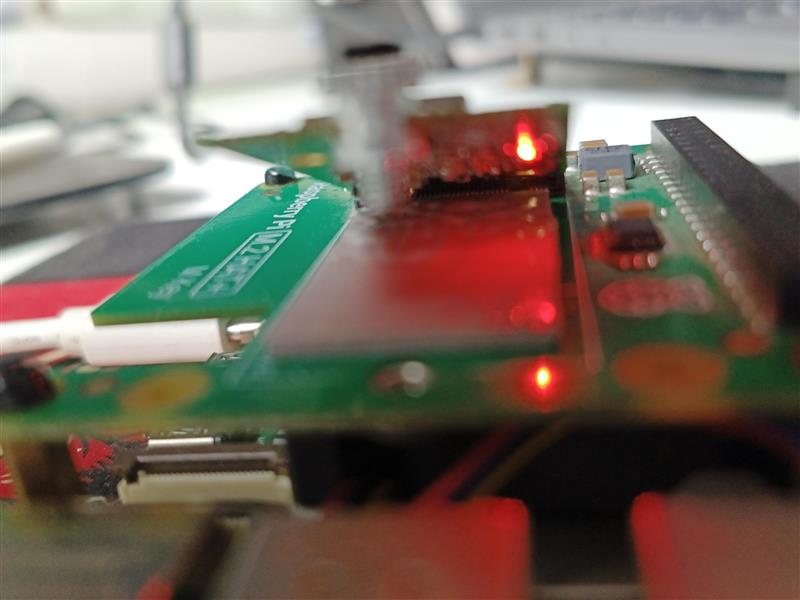
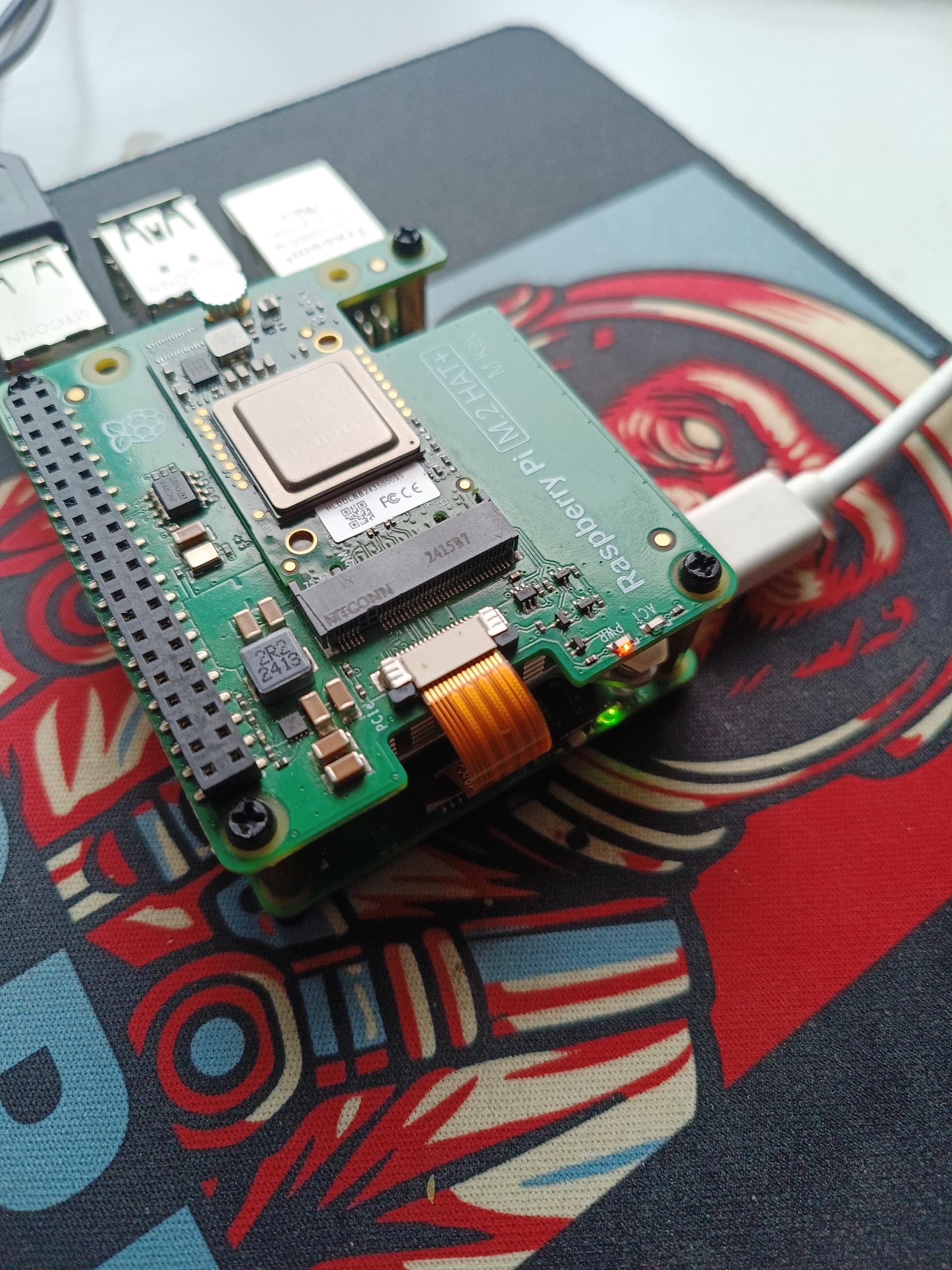
Hi @Virag_Shah can you try:
dmesg | grep -i pcie
Already did. The log message sent above is for the same
Hey,
I replaced the ai kit hat with a different one that supports hailo8l. Plugged in the cables preoperly, did sudo apt update && sudo apt full-upgrade, did sudo apt install hailo-all Ran Hailortcli fw-control identify and I am still getting ERROR cant find HailoRT driver class. And on running dmesg | grep -i pcie i got -
[ 0.000000] Kernel command line: reboot=w coherent_pool=1M 8250.nr_uarts=1 pci=pcie_bus_safe cgroup_disable=memory numa_policy=interleave nvme.max_host_mem_size_mb=0 numa=fake=8 system_heap.max_order=0 smsc95xx.macaddr=D8:3A:DD:C0:7B:BC vc_mem.mem_base=0x3fc00000 vc_mem.mem_size=0x40000000 console=ttyAMA10,115200 console=tty1 root=PARTUUID=47909535-02 rootfstype=ext4 fsck.repair=yes rootwait quiet splash plymouth.ignore-serial-consoles cfg80211.ieee80211_regdom=IN
[ 0.030024] /axi/pcie@1000120000/rp1/i2c@80000/imx708@1a: Fixed dependency cycle(s) with /axi/pcie@1000120000/rp1/csi@128000
[ 0.030050] /axi/pcie@1000120000/rp1/csi@128000: Fixed dependency cycle(s) with /axi/pcie@1000120000/rp1/i2c@80000/imx708@1a
[ 0.030191] /axi/pcie@1000120000/rp1/i2c@80000/imx708@1a: Fixed dependency cycle(s) with /axi/pcie@1000120000/rp1/csi@128000
[ 0.030218] /axi/pcie@1000120000/rp1/csi@128000: Fixed dependency cycle(s) with /axi/pcie@1000120000/rp1/i2c@80000/imx708@1a
[ 0.402723] brcm-pcie 1000110000.pcie: host bridge /axi/pcie@1000110000 ranges:
[ 0.402727] brcm-pcie 1000110000.pcie: No bus range found for /axi/pcie@1000110000, using [bus 00-ff]
[ 0.402735] brcm-pcie 1000110000.pcie: MEM 0x1b80000000..0x1bffffffff → 0x0080000000
[ 0.402739] brcm-pcie 1000110000.pcie: MEM 0x1800000000..0x1b7fffffff → 0x0400000000
[ 0.402744] brcm-pcie 1000110000.pcie: IB MEM 0x0000000000..0x0fffffffff → 0x1000000000
[ 0.402748] brcm-pcie 1000110000.pcie: IB MEM 0x1000131000..0x1000131fff → 0xfffffff000
[ 0.404095] brcm-pcie 1000110000.pcie: PCI host bridge to bus 0001:00
[ 0.404116] pci 0001:00:00.0: [14e4:2712] type 01 class 0x060400 PCIe Root Port
[ 0.508495] brcm-pcie 1000110000.pcie: clkreq-mode set to safe
[ 0.508498] brcm-pcie 1000110000.pcie: link up, 5.0 GT/s PCIe x1 (!SSC)
[ 0.508519] pci 0001:01:00.0: [1b21:1182] type 01 class 0x060400 PCIe Switch Upstream Port
[ 0.516641] pci 0001:02:03.0: [1b21:1182] type 01 class 0x060400 PCIe Switch Downstream Port
[ 0.516880] pci 0001:02:07.0: [1b21:1182] type 01 class 0x060400 PCIe Switch Downstream Port
[ 0.517716] pcieport 0001:00:00.0: PME: Signaling with IRQ 38
[ 0.517765] pcieport 0001:00:00.0: AER: enabled with IRQ 38
[ 0.518263] brcm-pcie 1000120000.pcie: host bridge /axi/pcie@1000120000 ranges:
[ 0.518267] brcm-pcie 1000120000.pcie: No bus range found for /axi/pcie@1000120000, using [bus 00-ff]
[ 0.518273] brcm-pcie 1000120000.pcie: MEM 0x1f00000000..0x1ffffffffb → 0x0000000000
[ 0.518279] brcm-pcie 1000120000.pcie: MEM 0x1c00000000..0x1effffffff → 0x0400000000
[ 0.518284] brcm-pcie 1000120000.pcie: IB MEM 0x1f00000000..0x1f003fffff → 0x0000000000
[ 0.518288] brcm-pcie 1000120000.pcie: IB MEM 0x0000000000..0x0fffffffff → 0x1000000000
[ 0.518292] brcm-pcie 1000120000.pcie: IB MEM 0x1000130000..0x1000130fff → 0xfffffff000
[ 0.519430] brcm-pcie 1000120000.pcie: PCI host bridge to bus 0002:00
[ 0.519445] pci 0002:00:00.0: [14e4:2712] type 01 class 0x060400 PCIe Root Port
[ 0.620491] brcm-pcie 1000120000.pcie: clkreq-mode set to default
[ 0.620493] brcm-pcie 1000120000.pcie: link up, 5.0 GT/s PCIe x4 (!SSC)
[ 0.620512] pci 0002:01:00.0: [1de4:0001] type 00 class 0x020000 PCIe Endpoint
[ 0.628581] pcieport 0002:00:00.0: enabling device (0000 → 0002)
[ 0.628602] pcieport 0002:00:00.0: PME: Signaling with IRQ 42
[ 0.628644] pcieport 0002:00:00.0: AER: enabled with IRQ 42
[ 0.632971] /axi/pcie@1000120000/rp1/i2c@80000/imx708@1a: Fixed dependency cycle(s) with /axi/pcie@1000120000/rp1/csi@128000
[ 0.648115] /axi/pcie@1000120000/rp1/i2c@80000/imx708@1a: Fixed dependency cycle(s) with /axi/pcie@1000120000/rp1/csi@128000
[ 0.648134] /axi/pcie@1000120000/rp1/csi@128000: Fixed dependency cycle(s) with /axi/pcie@1000120000/rp1/i2c@80000/imx708@1a
[ 1.098809] input: Logitech USB Optical Mouse as /devices/platform/axi/1000120000.pcie/1f00300000.usb/xhci-hcd.1/usb3/3-2/3-2:1.0/0003:046D:C077.0001/input/input0
[ 1.545785] input: Logitech USB Keyboard as /devices/platform/axi/1000120000.pcie/1f00200000.usb/xhci-hcd.0/usb1/1-2/1-2:1.0/0003:046D:C31C.0002/input/input1
[ 1.801711] input: Logitech USB Keyboard Consumer Control as /devices/platform/axi/1000120000.pcie/1f00200000.usb/xhci-hcd.0/usb1/1-2/1-2:1.1/0003:046D:C31C.0003/input/input2
[ 1.856533] input: Logitech USB Keyboard System Control as /devices/platform/axi/1000120000.pcie/1f00200000.usb/xhci-hcd.0/usb1/1-2/1-2:1.1/0003:046D:C31C.0003/input/input3
[ 2.989984] rp1-cfe 1f00128000.csi: found subdevice /axi/pcie@1000120000/rp1/i2c@80000/imx708@1a
Kindly tell me what to do next?
Anything ??? @omria @Klaus_Koschinsky
You should be able to see the Hailo device using the lspci command without any update/upgrade or software installation. If that is not working you have a hardware issue.
I also recommend installing the GPIO header connector. In the images above it looks like it is not installed.
Well if the hardware is damaged -
1. it shouldnt be able to enumerate an ssd mounted on the seeedstudio dual m2 hat
- the Hailo8l chip is also being enumerated on the jetson orin nano.
- It is also showing link up between the new seeedstudio dual m2 hat and the pi so clearly that is also working
- I switched the SD card and the Hailo chip from one pi to another one… it isnt showing up there either.
What hardware do you think I should try swapping ?
I did not say damaged. But you need to solve the hardware issue first. Installing any HailoRT PCIe driver and/or HailoRT will not help.
That is a good test. So, the Hailo device is OK.
I tested a dual M.2 HAT (a different model) and did not have any success with it. We and some of our partners have PCIe cards with multiple Hailo devices and PCIe switches. However the PCIe switches on these cards are PCIe gen 3 + and usually large chips with heatsink and fans. Maybe the HATs use some older cheaper PCIe gen 2 switches that are not suitable.
Did you use standard 64-bit Raspberry Pi OS?
Did you install the 40-pin GPIO header?
As for the M.2 Hat i tested with this - PCIe2.0 to dual M.2 hat for Raspberry Pi 5, Support NVMe SSD, Support Hailo8/8L
And i use the standard 64-bit Pi os and I installed the 4- pin gpio header for the original Hailo8l AI kit, for the seeedstudio one, it mounts on the back of the pi in such a way that five pogo pins connect to the required gpio pins on the pi5