Hailo + Homeassistant + Frigate

Plug-and-Play AI: Hailo, Frigate, and Home Assistant Integration

Here’s everything you need to know about the Hailo integration into Frigate NVR and Home Assistant (HA):

The What

This integration combines the capabilities of the Frigate video management system, the HA home automation system and the Hailo AI acceleration into a robust, industry-grade, AI-powered home security system.

The Why

  • Cost: Running on the Raspberry Pi 5 with a Raspberry Pi AI HAT+ this is a <$200 solution. The November 2025 pricing is:
  • Hailo-8L Kit (13 TOPS): RPi 5 ($80) + Hailo-8L HAT ($70) = $150
  • Hailo-8 Kit (26 TOPS): RPi 5 ($80) + Hailo-8 HAT ($110) = $190
  • Performance: The Hailo chip offers massive acceleration capacity, achieving ultra-low inference latency of just 7 ms using high-throughput models like YOLOv6n, and up to 580 FPS (Hailo-8) and 350 FPS (Hailo-8L), while also supporting stronger, more accurate models. The Hailo processor provides critical CPU offloading and with many TOPS to spare, allows additional AI applications on the same setup.
  • Reliability: The integration with both Frigate and HA is available in their official websites. Combined with our long-term partnership with Raspberry pi, this guarantees stable releases and long-term support
  • Privacy: all AI processing is executed locally on the host device, without sending any data to the cloud.

The Wow:

With the help of our partners at Frigate and Home Assistant, we have made this super easy to use:

  • No Code: Installation is incredibly simple. By using the Frigate Add-on for Home Assistant, the entire application setup is No Code. The HA operating system (HAOS) automatically handles the driver installation, making deployment instantaneous and accessible to everyone.
  • Optimal Integration: Hailo allows Frigate to leverage advanced computer vision models. This high-speed processing, combined with the low-latency MQTT bridge, enables Home Assistant to execute instantaneous and accurate home automations.

The Guide

This guide provides a template for using Hailo with Frigate running on Home Assistant, and covers the full installation process and required setup of Frigate on Home Assistant.

Prerequisites:

  1. Home Assistant running on Raspberry Pi (version 2025.5.3 or higher)

  2. Pi AI HAT+

  3. Basic familiarity with how to navigate within home assistant, eg., adding integrations & add-ons.

Setup steps - all inside Home Assistant:

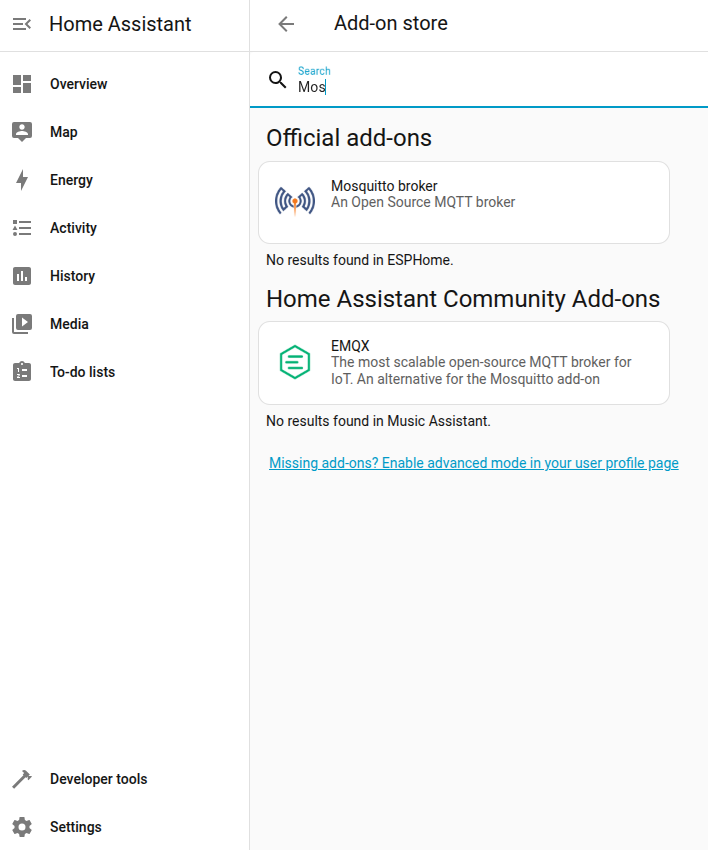
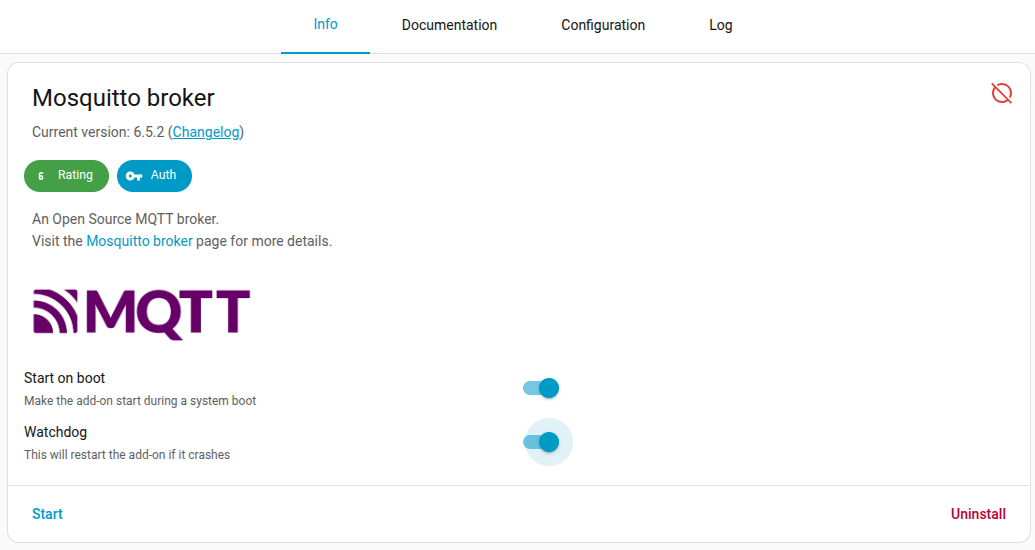
  1. Install the MQTT broker “Add-on”.

Enable Watchdog and “Start”.
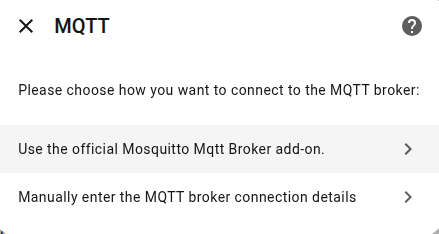
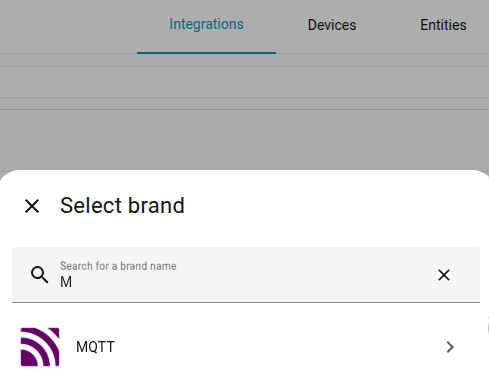
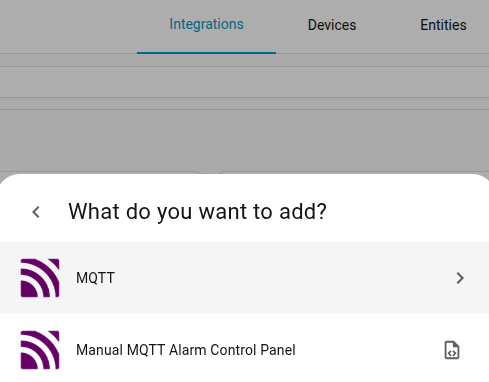
  1. Add MQTT “Integration”: First option (MQTT) and then again the first option (“Use the official…”).
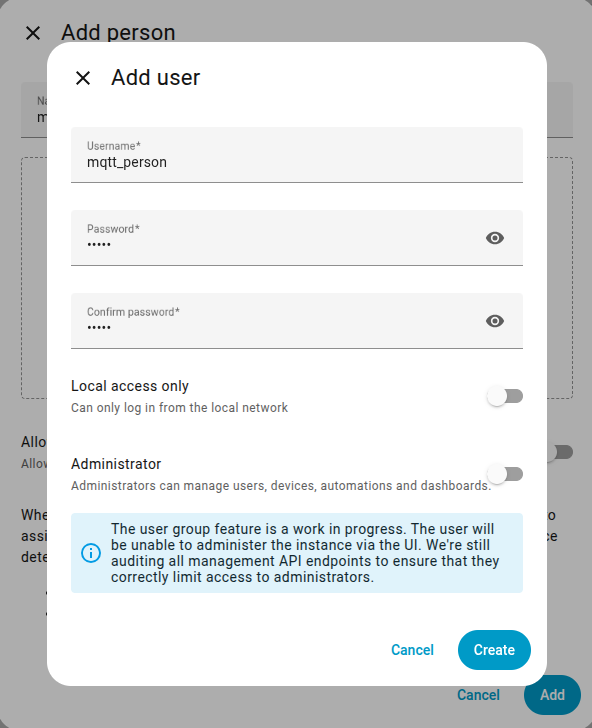
  1. Create MQTT “User”: Settings → People → Add person.
  1. In the “Add-on”'s page select “Add-on store” and then press the 3 dots and select “Repositories”.
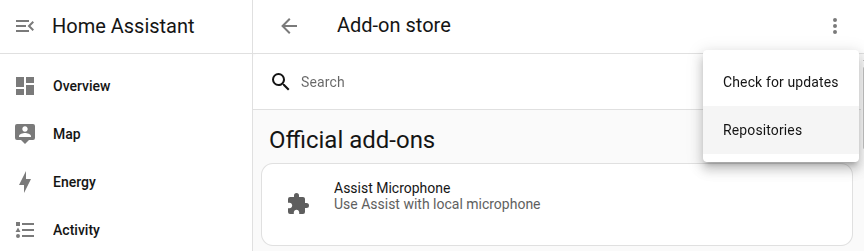
Paste the following repository link: GitHub - blakeblackshear/frigate-hass-addons: Frigate hass.io addons
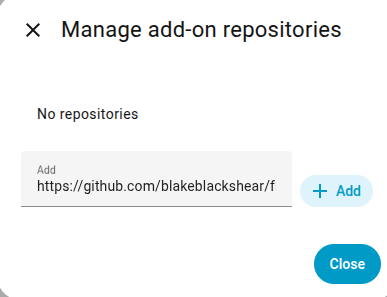
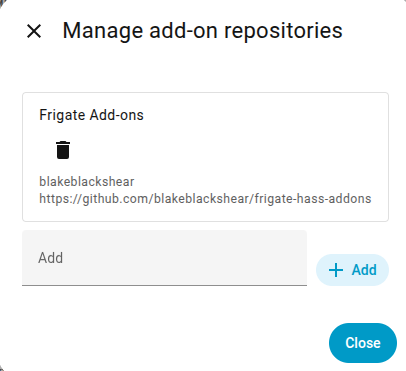
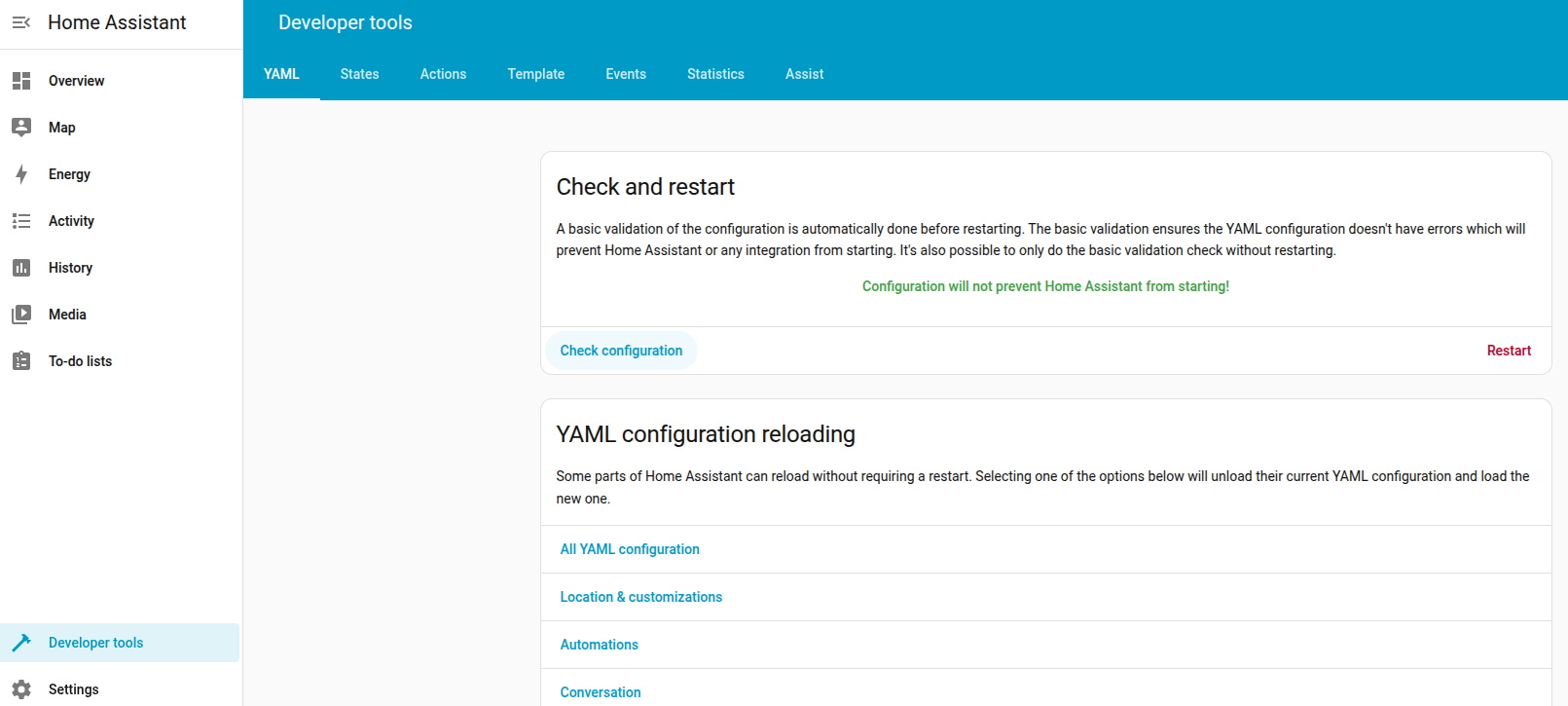
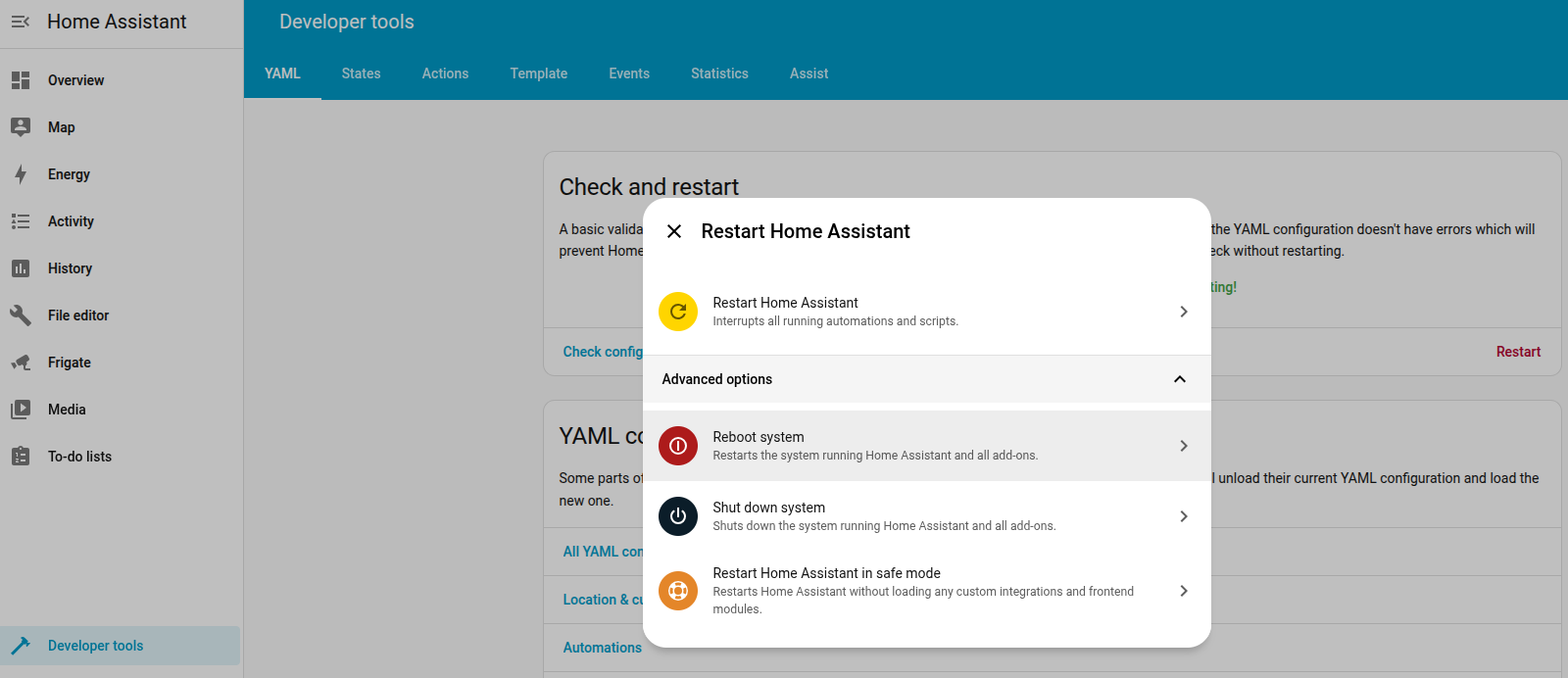
  1. Restart Home assistant: Developer tools → Check and restart → press “Check configuration” and then press “Restart”.
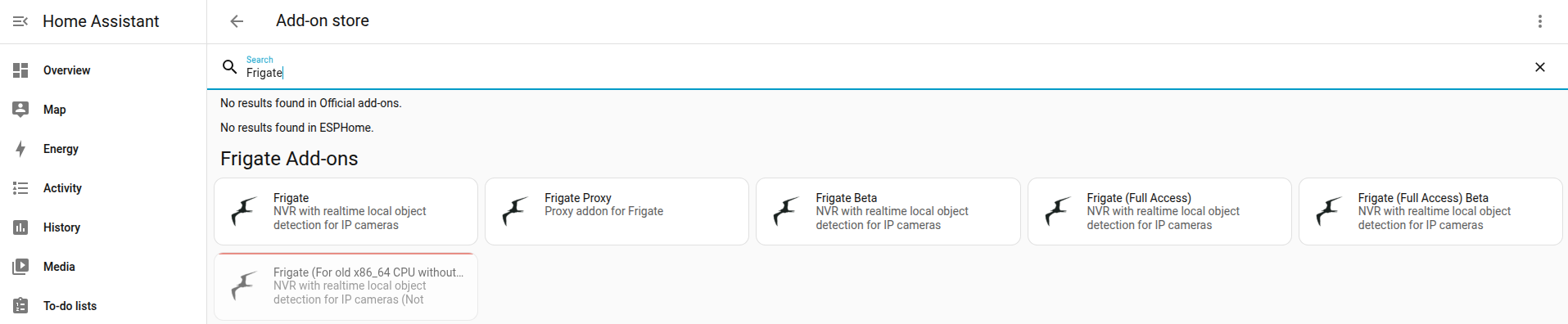
  2. Now the Frigate “Add-on” is available - select the “Full Access” option.
  1. Enable “Watchdog” and disable “Protection mode” and then “Start”.
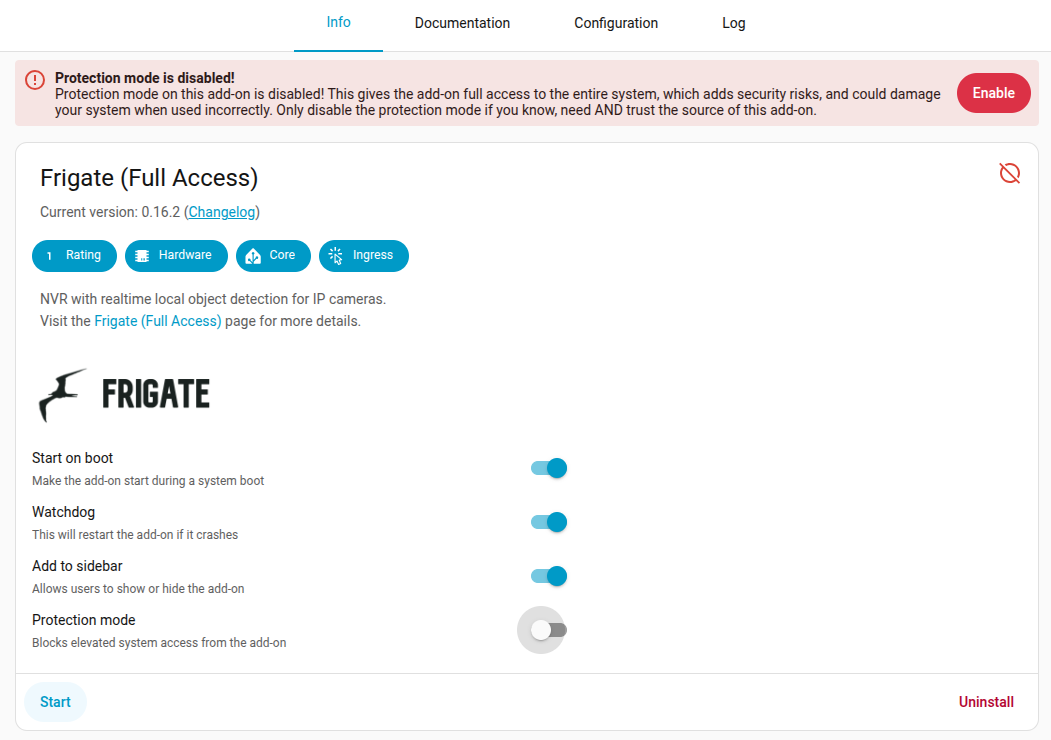
  1. Go to Frigate and in Settings select “Configuration Editor”.
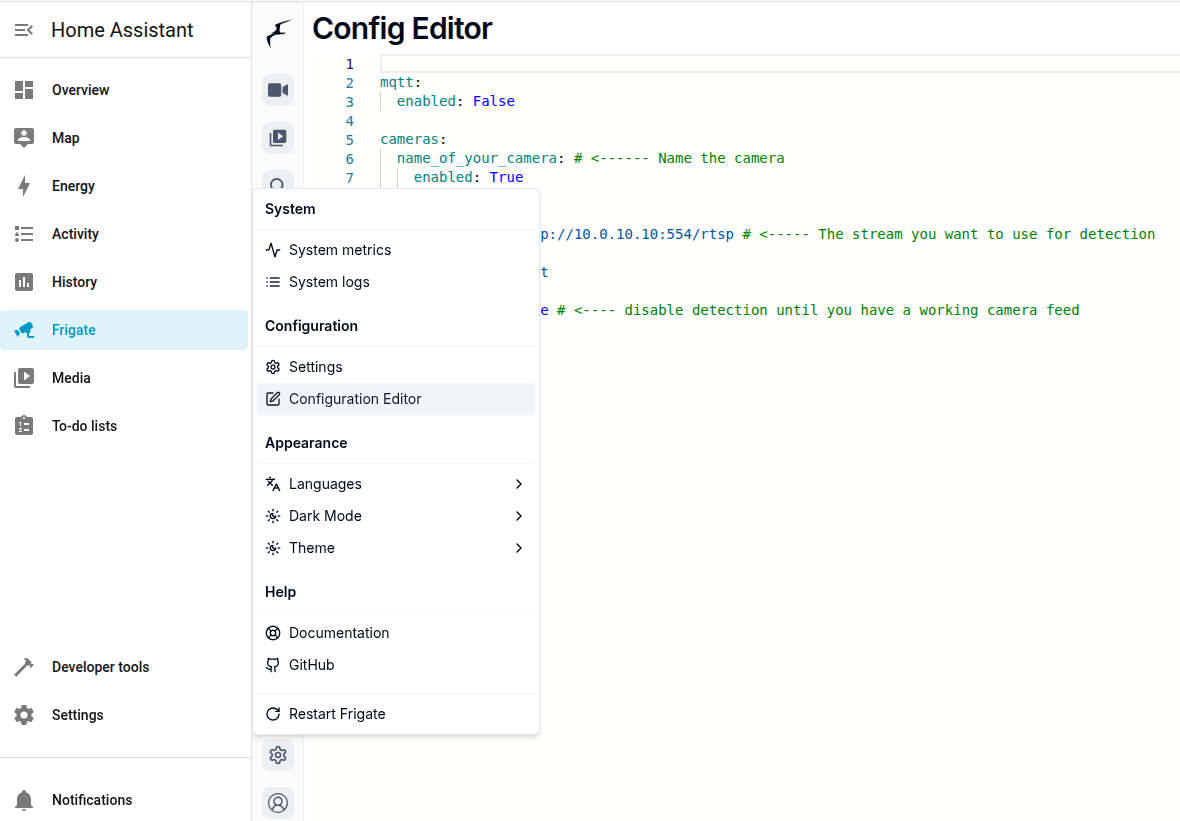
  1. Example configuration - Edit based on your details the lines with TODO:
# Full Frigate documentation: https://docs.frigate.video/configuration/reference/
mqtt:
  enabled: true
  host: URL path  # TODO
  user: name      # TODO
  password: pass  # TODO

cameras:
  Camera_1:
    enabled: true
    ffmpeg:
      inputs:
        - path: URL path  # TODO
          roles:
            - detect
            - record
# Below are global settings - will aplly to all cameras
detectors:
  hailo8l:  # Always 8l, even in case of 8
    type: hailo8l  # Always 8l, even in case of 8
    device: PCIe

# Default model
model:
  width: 640
  height: 640
  input_tensor: nhwc
  input_pixel_format: rgb
  input_dtype: int
  model_type: yolo-generic  # Default YOLOv6n

# Example with Custom YOLO Model (HEF compiled for Hailo8) with URL (e.g. YOLOv8m)
# model:
#   width: 640
#   height: 640
#   input_tensor: nhwc
#   input_pixel_format: rgb
#   input_dtype: int
#   model_type: yolo-generic
#   path: https://hailo-model-zoo.s3.eu-west-2.amazonaws.com/ModelZoo/Compiled/v2.17.0/hailo8/yolov8m.hef

detect:
  enabled: true
  width: 1280
  height: 720
  fps: 5

objects:
  track:  # List of objects to track from model's labelmap. Since model is Yolo, then: https://docs.ultralytics.com/datasets/detect/coco/#dataset-yaml
    - person
 
  filters:  # Optional: filters to reduce false positives for specific object types
    person:
      min_area: 5000
      max_area: 100000
      min_score: 0.5
      threshold: 0.7

record:  # Optional: Enable recording
  enabled: true
  detections:
    pre_capture: 5
    post_capture: 5
    retain:
      days: 1
      mode: active_objects

snapshots:  # Optional: Configuration for the jpg snapshots written to the clips directory for each tracked object
  enabled: true
  timestamp: true
  bounding_box: true
  crop: False
  retain:
    default: 1
    objects:
      person: 1

logger:
  default: info
  logs:
    frigate.object_detection: debug
    frigate.motion: debug
    detector.hailo8l: debug

version: 0.16-0

Models are downloaded to: ~/addon_configs/ccab4aaf_frigate-fa/model_cache/

  1. Save and restart frigate:

image

NOTE:

  1. If Frigate output errors about the Hailo model, you should try power cycling the Pi. Just restarting home assistant is not enough as the HAT is connected using PCIe and if driver is updated it need to update its FW.
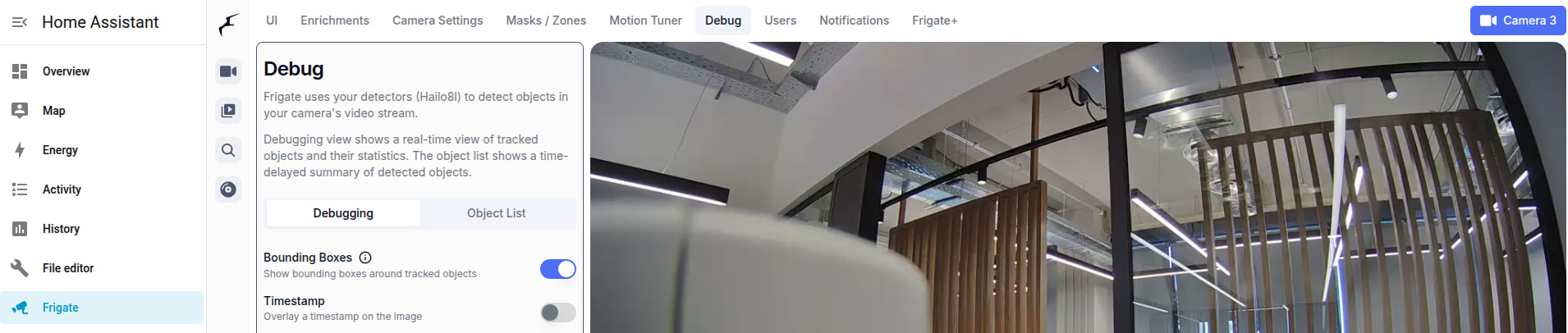
  1. Detections can be seen in real time (live) only via debug mode. Select the camera - and enter debug mode (via settings on the right).

  1. Allow bounding boxes - then inspect detection in real time.
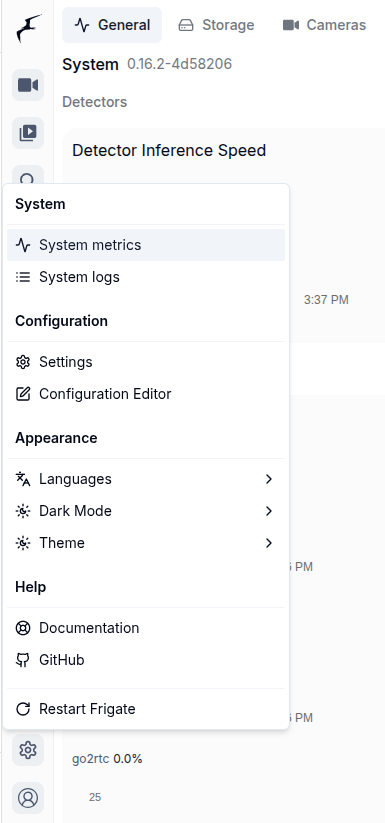
  1. Detection bounding boxes can also be seen on recordings & snapshots: Navigate to “Explore”.
Select event, and then explore the Snapshot and the object life-cycle.

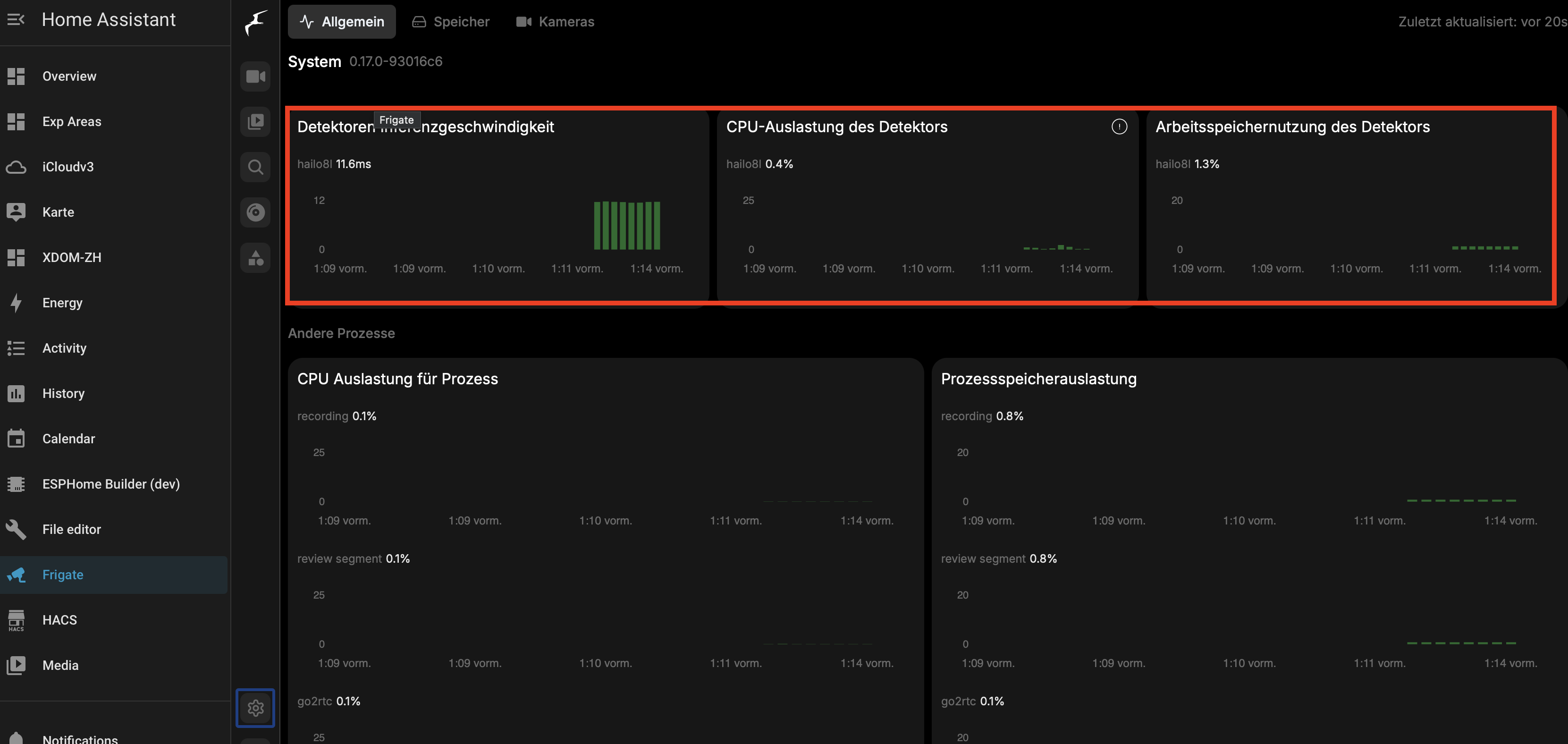
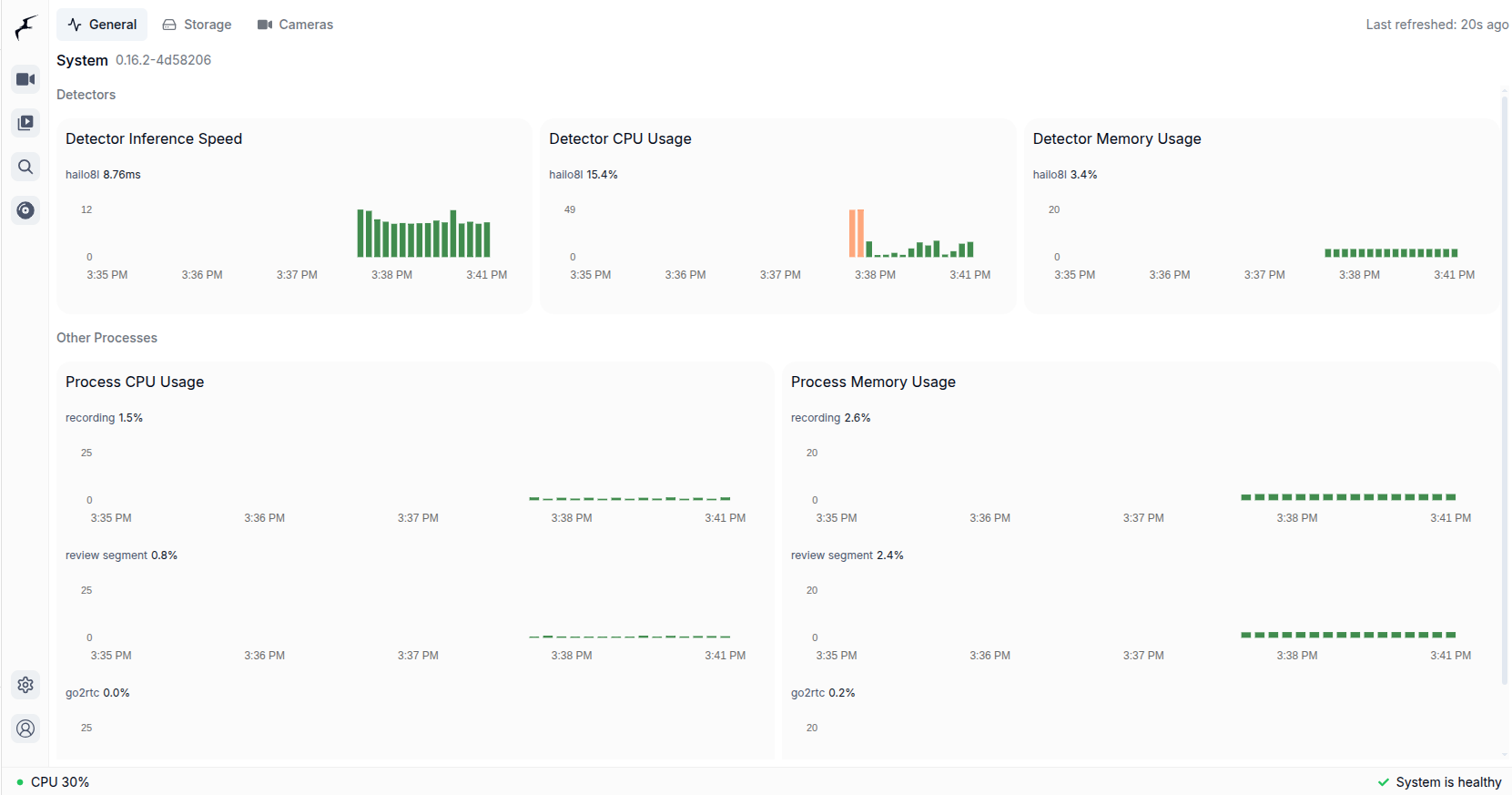
Explore the performance: Frigate → Settings → System metrics:
This is for a system with 4 cameras:
My hardware:

  • NVMe disk

OS / Home Assistant:

  • Installation method: Home Assistant OS

  • Core: 2025.12.3

  • Supervisor: 2025.12.3

  • Operating System: 17.0.rc1

  • Frontend: 20251203.2

Could you please explain what the expected / correct output in the Home Assistant Terminal should look like in order to get a Hailo-8 working inside the Frigate Docker container?

I’m not sure whether, in the following state, the module (Hailo-8) is actually ready to be used:

  • Failed to enable MSI -28

  • Failed activating board -28

  • probe with driver hailo failed with error -28

I’m running the Frigate add-on container: addon_ccab4aaf_frigate-fa-beta

The HailoRT CLI inside the container reports: HailoRT-CLI version 4.21.0

Any guidance on what the “healthy” kernel/driver state should look like (especially regarding MSI), and what steps are recommended to resolve the Failed to enable MSI -28 error on HAOS, would be appreciated.

Here is the full output:

dmesg | grep -i hailo

[ 1.258776] hailo_pci: loading out-of-tree module taints kernel.

[ 1.259375] hailo: Init module. driver version 4.21.0

[ 1.259480] hailo 0001:06:00.0: Probing on: 1e60:2864…

[ 1.259485] hailo 0001:06:00.0: Probing: Allocate memory for device extension, 13192

[ 1.259508] hailo 0001:06:00.0: enabling device (0000 → 0002)

[ 1.259516] hailo 0001:06:00.0: Probing: Device enabled

[ 1.259533] hailo 0001:06:00.0: Probing: mapped bar 0 - 000000000964c794 16384

[ 1.259540] hailo 0001:06:00.0: Probing: mapped bar 2 - 000000002fb218a3 4096

[ 1.259546] hailo 0001:06:00.0: Probing: mapped bar 4 - 000000002aa7560b 16384

[ 1.259552] hailo 0001:06:00.0: Probing: Setting max_desc_page_size to 4096, (page_size=4096)

[ 1.259564] hailo 0001:06:00.0: Probing: Enabled 64 bit dma

[ 1.259568] hailo 0001:06:00.0: Probing: Using userspace allocated vdma buffers

[ 1.259573] hailo 0001:06:00.0: Disabling ASPM L0s

[ 1.259578] hailo 0001:06:00.0: Successfully disabled ASPM L0s

[ 1.259646] hailo 0001:06:00.0: Failed to enable MSI -28

[ 1.259649] hailo 0001:06:00.0: Failed enabling interrupts -28

[ 1.259652] hailo 0001:06:00.0: Failed activating board -28

[ 1.259662] hailo 0001:06:00.0: probe with driver hailo failed with error -28

dmesg | grep -i pcie

[ 0.000000] Kernel command line: reboot=w coherent_pool=1M 8250.nr_uarts=1 pci=pcie_bus_safe cgroup_disable=memory numa_policy=interleave nvme.max_host_mem_size_mb=0 numa=fake=8 system_heap.max_order=0 smsc95xx.macaddr=2C:CF:67:E4:3E:C6 vc_mem.mem_base=0x3fc00000 vc_mem.mem_size=0x40000000 zram.enabled=1 zram.num_devices=3 rootwait cgroup_enable=memory fsck.repair=yes console=tty0 root=PARTUUID=a3ec664e-32ce-4665-95ea-7ae90ce9aa20 ro rauc.slot=B systemd.machine_id=f9e9ebde3d204138b27ae327949a1885

[ 0.304545] brcm-pcie 1000110000.pcie: host bridge /axi/pcie@1000110000 ranges:

[ 0.304552] brcm-pcie 1000110000.pcie: No bus range found for /axi/pcie@1000110000, using [bus 00-ff]

[ 0.304561] brcm-pcie 1000110000.pcie: MEM 0x1b80000000..0x1bffffffff → 0x0080000000

[ 0.304567] brcm-pcie 1000110000.pcie: MEM 0x1800000000..0x1b7fffffff → 0x0400000000

[ 0.304574] brcm-pcie 1000110000.pcie: IB MEM 0x0000000000..0x0fffffffff → 0x1000000000

[ 0.304579] brcm-pcie 1000110000.pcie: IB MEM 0x1000131000..0x1000131fff → 0xfffffff000

[ 0.305913] brcm-pcie 1000110000.pcie: PCI host bridge to bus 0001:00

[ 0.305940] pci 0001:00:00.0: [14e4:2712] type 01 class 0x060400 PCIe Root Port

[ 0.409791] brcm-pcie 1000110000.pcie: clkreq-mode set to safe

[ 0.409796] brcm-pcie 1000110000.pcie: link up, 5.0 GT/s PCIe x1 (!SSC)

[ 0.409819] pci 0001:01:00.0: [1b21:2806] type 01 class 0x060400 PCIe Switch Upstream Port

[ 0.410001] pci 0001:01:00.0: 4.000 Gb/s available PCIe bandwidth, limited by 5.0 GT/s PCIe x1 link at 0001:00:00.0 (capable of 15.752 Gb/s with 8.0 GT/s PCIe x2 link)

[ 0.417859] pci 0001:02:00.0: [1b21:2806] type 01 class 0x060400 PCIe Switch Downstream Port

[ 0.418158] pci 0001:02:02.0: [1b21:2806] type 01 class 0x060400 PCIe Switch Downstream Port

[ 0.418471] pci 0001:02:06.0: [1b21:2806] type 01 class 0x060400 PCIe Switch Downstream Port

[ 0.418851] pci 0001:02:0e.0: [1b21:2806] type 01 class 0x060400 PCIe Switch Downstream Port

[ 0.419471] pci 0001:03:00.0: [1d97:5216] type 00 class 0x010802 PCIe Endpoint

[ 0.419691] pci 0001:03:00.0: 4.000 Gb/s available PCIe bandwidth, limited by 5.0 GT/s PCIe x1 link at 0001:00:00.0 (capable of 31.504 Gb/s with 8.0 GT/s PCIe x4 link)

[ 0.425985] pci 0001:06:00.0: [1e60:2864] type 00 class 0x0b4000 PCIe Endpoint

[ 0.426217] pci 0001:06:00.0: 4.000 Gb/s available PCIe bandwidth, limited by 5.0 GT/s PCIe x1 link at 0001:00:00.0 (capable of 31.504 Gb/s with 8.0 GT/s PCIe x4 link)

[ 0.434113] pcieport 0001:00:00.0: enabling device (0000 → 0002)

[ 0.434143] pcieport 0001:00:00.0: PME: Signaling with IRQ 38

[ 0.434193] pcieport 0001:00:00.0: AER: enabled with IRQ 38

[ 0.434248] pcieport 0001:01:00.0: enabling device (0000 → 0002)

[ 0.434328] pcieport 0001:02:00.0: enabling device (0000 → 0002)

[ 0.434720] pcieport 0001:02:0e.0: enabling device (0000 → 0002)

[ 0.443326] brcm-pcie 1000120000.pcie: host bridge /axi/pcie@1000120000 ranges:

[ 0.443332] brcm-pcie 1000120000.pcie: No bus range found for /axi/pcie@1000120000, using [bus 00-ff]

[ 0.443341] brcm-pcie 1000120000.pcie: MEM 0x1f00000000..0x1ffffffffb → 0x0000000000

[ 0.443346] brcm-pcie 1000120000.pcie: MEM 0x1c00000000..0x1effffffff → 0x0400000000

[ 0.443354] brcm-pcie 1000120000.pcie: IB MEM 0x1f00000000..0x1f003fffff → 0x0000000000

[ 0.443360] brcm-pcie 1000120000.pcie: IB MEM 0x0000000000..0x0fffffffff → 0x1000000000

[ 0.443365] brcm-pcie 1000120000.pcie: IB MEM 0x1000130000..0x1000130fff → 0xfffffff000

[ 0.444513] brcm-pcie 1000120000.pcie: PCI host bridge to bus 0002:00

[ 0.444536] pci 0002:00:00.0: [14e4:2712] type 01 class 0x060400 PCIe Root Port

[ 0.545786] brcm-pcie 1000120000.pcie: clkreq-mode set to default

[ 0.545791] brcm-pcie 1000120000.pcie: link up, 5.0 GT/s PCIe x4 (!SSC)

[ 0.545812] pci 0002:01:00.0: [1de4:0001] type 00 class 0x020000 PCIe Endpoint

[ 0.553899] pcieport 0002:00:00.0: enabling device (0000 → 0002)

[ 0.553926] pcieport 0002:00:00.0: PME: Signaling with IRQ 48

[ 0.553995] pcieport 0002:00:00.0: AER: enabled with IRQ 48

ls -la /dev | grep -i hailo

(no output)

docker inspect addon_ccab4aaf_frigate-fa-beta | grep -i device

“Devices”: null,
“DeviceCgroupRules”: [
“DeviceRequests”: null,

Hi @Jose_Roig

If I understand correctly, you’re using a Raspberry Pi 5 with PCIe Switch?

If that the case, then, maybe Raspberry Pi 5’s PCIe controller is running out of MSI interrupt vectors due to the PCIe switch?

If so, maybe adding pci=nomsi to your kernel boot parameters to use legacy interrupts instead, might be a solution.

  • Multiple PCIe devices through a switch (ASMedia ASM2806 in your case?)

  • The brcm-pcie controller has limited MSI interrupt vectors

  • Error -28 (ENOSPC) = “no space” for interrupt allocation

The Hailo-8 is physically detected but cannot complete initialization due to interrupt exhaustion.

Thanks,

I agree hailo8 on a switch is variable at best, i had to put it on a bifurcation card to do what @Jose_Roig did, which of course a pi doesn’t support

can the same basic yaml config be used on the normal frigate image (not the home assistant one) - i want to migreate from my 2080ti to me hailo8….. and i can’t install arbitrary drivers (i am using truenas)….

The .yaml indeed is generic for Frigate.

1 Like